 qamer javed
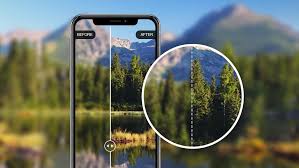
Images play a big role in how content is seen online. Large images can slow down a page and small images can look blurry. Each platform has its own ideal image size.
Adjusting images before uploading makes them look better and perform faster. Social media, websites, and blogs all need different dimensions. Knowing how to adjust image size for any platform saves time and effort.
Follow these tips to make your images fit perfectly and look professional across platforms. Read on to learn practical ways to adjust your images and improve your online presence.
Resize Images Before Uploading
Resizing images before uploading helps maintain quality. Most devices take photos in large sizes that are too big for online use. Large images take longer to load and can reduce user experience. You can use simple software to resize images without losing clarity.
Always choose the correct dimensions for the platform you are posting on. Check the file size to make sure it is not too large. Keep aspect ratios consistent to avoid stretched or squished images. Smaller images load faster and save storage space. Preparing images in advance reduces errors when posting online.
Use Online Image Resizing Tools
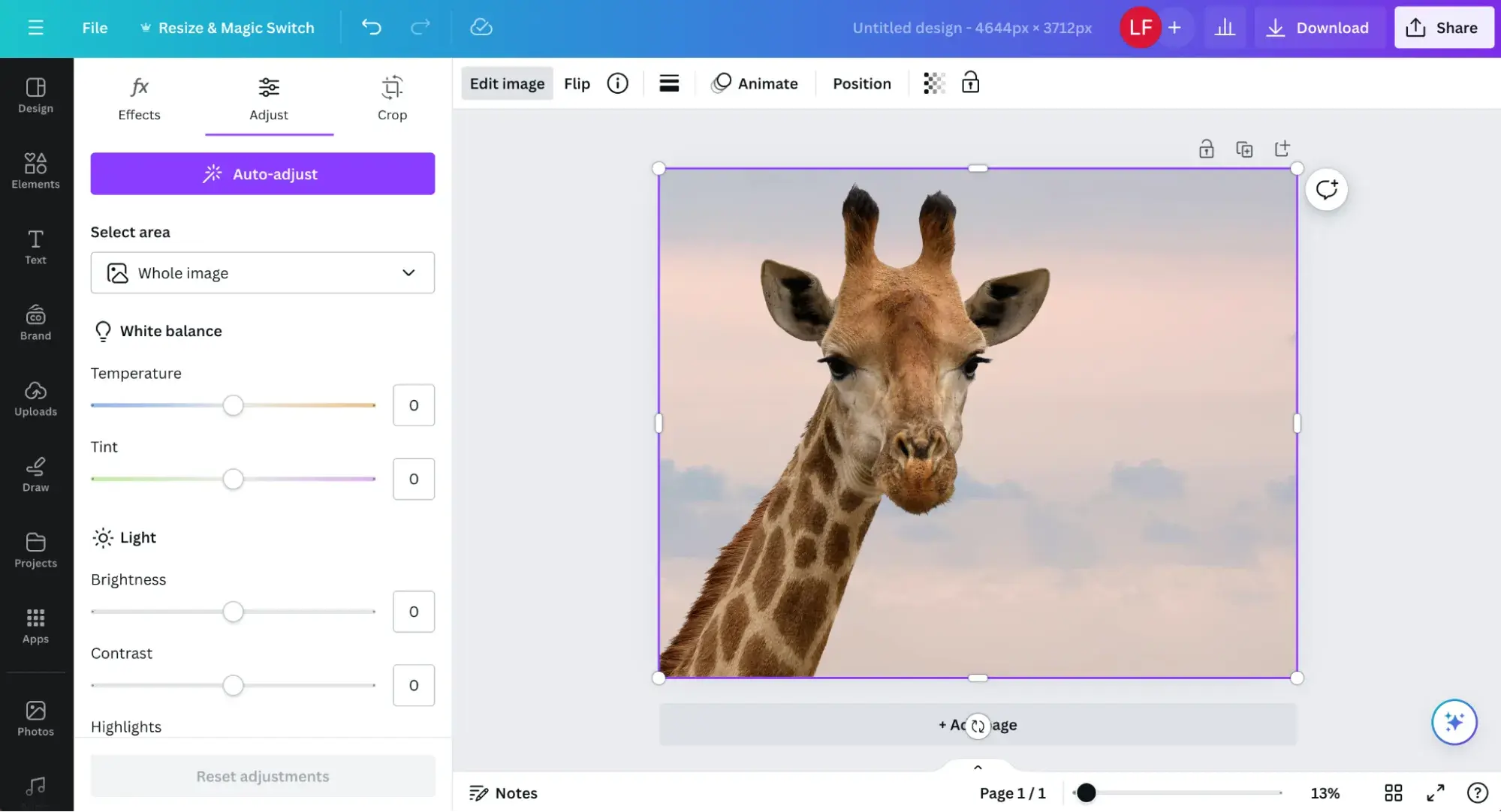
Online tools are quick and easy for resizing images. They work in a browser and do not need installation. You can select the desired width and height. Most tools allow you to keep the original quality.
They are useful for one-time adjustments or small batches. These tools also let you crop or compress images. You can preview changes before downloading. Online resizing is useful for people without editing software. This method works well for social media posts and blogs.
Crop Images to Focus on Details
Cropping removes unnecessary parts of an image. It emphasizes the main subject. Cropping also helps fit images into specific platform dimensions. Make sure to keep the important areas in view.
Avoid cutting too much or making the image awkward. Cropped images are cleaner and more professional. You can crop before or after resizing. Cropping can also change the image ratio. Proper cropping ensures the image looks good on all devices.
Adjust Image Resolution
Resolution affects how sharp an image looks. High resolution is good for print but often too large for web use. Lower resolution can make images load faster online. Balance resolution and file size for optimal quality.
Many editing tools let you adjust resolution easily. Keep resolution at a level where details remain clear. Use standard resolutions for websites and social media. Adjusting resolution reduces slow loading times. Proper resolution helps images display correctly on all screens.
Compress Images Without Losing Quality
Compression reduces file size without hurting quality. Smaller files load faster on websites. Compression is useful for platforms that limit file size. Many apps allow lossless compression.
Check the image after compressing to make sure it looks fine. Compressing is especially important for multiple images. It also saves storage space on servers. Always compress images before uploading. This step helps your content appear quickly to viewers.
Maintain Correct Aspect Ratios
Aspect ratio is the width compared to the height. Keeping correct ratios prevents stretched images. Each platform may require a different aspect ratio. Use guides or templates to set the correct ratio.
Adjust cropping or resizing to maintain it. Wrong ratios can make images look unprofessional. Maintaining ratios helps consistency across platforms. It ensures images look natural on all screens. Always check the final result before posting.
Batch Resize for Efficiency
Batch resizing saves time when handling many images. You can resize multiple files at once. Some software allows batch resizing with set dimensions. This is ideal for social media posts or blog galleries. It ensures all images are uniform in size.
Batch processing reduces manual errors. You can combine it with compression for faster loading. Make sure each image keeps clarity after resizing. This method is best for large projects with many images.
Save Images in Proper File Formats
File format affects quality and loading speed. JPEG is common for photos with small file sizes. PNG is better for images with transparent backgrounds. WebP is modern and combines quality with compression.
Choosing the right format depends on platform needs. Wrong formats can reduce quality or slow loading. Save multiple versions if needed. Check platform requirements before saving. Proper formats improve performance and appearance online.
Use Mobile Apps for Quick Resizing
Mobile apps let you resize images on the go. They are useful when you do not have a computer. Many apps offer simple cropping and resizing tools. Some apps also compress images automatically.
You can save images in the correct format for platforms. Mobile resizing is quick for social media posts. Check the image on different screens after resizing. Apps allow adjustments without technical skills. They are convenient for fast updates and posting.
Use Simple Editing Software
Basic editing software can resize, crop, and compress images. They are easy to learn and use. You can adjust width, height, and resolution quickly. Many programs allow batch processing and format changes.
Editing software also helps improve color and clarity. You can use a photo background remover to change image size in one step. Software ensures precise results compared to online tools. It is useful for both beginners and advanced users. Proper use improves images across all platforms.
Check Images Across Devices
Images may look different on desktops, tablets, and phones. Always preview images on multiple devices. This helps spot stretching, blurring, or cropping issues. Adjust as needed for each screen size.
Small details can be missed on one device but visible on another. Testing ensures images appear professional everywhere. It also improves user experience. Some tools simulate different device screens. Checking images is a crucial step before publishing. It guarantees consistent display for all viewers.
Discover Practical Ways to Adjust Image Size for Any Platform
Adjusting image size for any platform improves online performance. It makes images load faster and appear professional. Proper sizing avoids distortion and cropping issues. Compression and correct resolution balance quality and file size.
Consistent aspect ratios and dimensions keep content uniform. Testing images across devices ensures they look right everywhere. Following these practical methods saves time and improves online visibility.
For more topics, you can visit our blog. We do have more!